Game Window
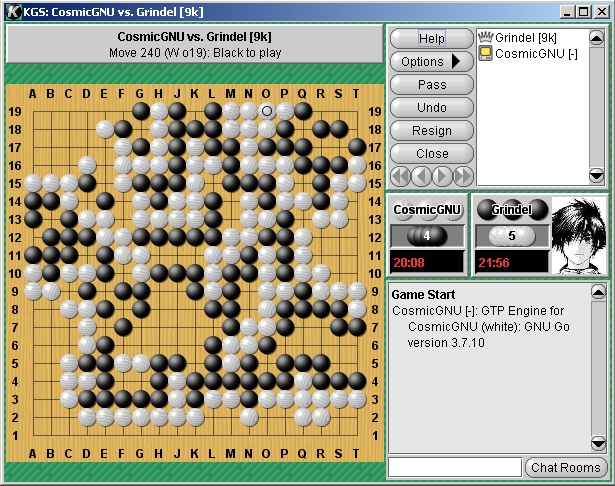
Warning: This screen shot is missing the tagged games dialog box. (The tagged
games dialog box is shown in the screen shot on the tagged games page.)
The game window is divided into four parts:
- The title. This shows who is playing in the game. White is listed first, then black. The title in the screenshot is "CosmicGNU vs. Grindel[9k]"
- Below the title is the move number, the coordinates of the last move, and whose turn it is.
- Below that is the goban. Click on the goban to make a move.
- To the right of the goban, on the top of the screen, there are six buttons.
- "Help" Displays this page.
- "Options" Brings up a menu with the following eight options.
- Rules: Displays the game-type, and rule-set, and time-setting of the current game
- Score Estimate: Displays an estimate of the score .
- The estimate is not always correct. It can be way off.
- The SE does not count seki correctly.
- SE always uses Japanese Rules
- SE cannot be used by the players of a game - except in a teaching game.
- SE is not available for the web-applet.
- Review Game: Changes the game into edit mode
- Save Game to Disk: Opens the save file dialog for saving the game as an SGF file on local disk drive. See the "Getting The Game Record" section of the Playing Games help page for further explanation.
- Access List: Allows selected users to join a private game.
Adding users to the access list is the only way to allow observers to watch a private match or demonstration game. Simply type the account name in the box, and press the enter key to give them access.
- View Offline: Opens a copy of the game on your computer in review mode.
- Clone Game: Allows observers to duplicate the game on the server. The observers can then discuss the game. Cloning the game will relay moves to the cloned game as they occur. The user who cloned the game has edit control.
- Add Time: Adds time to your opponent's clock during the game.
- "Pass" Click to pass.
- "Undo" Press this to send a request to your opponent for an undo of your last move. The opponent can either accept or refuse an undo.
- "Resign" Click this to resign the game. The game can be resigned by either player at any time.
- "Close" Exit from the game. This serves the same function as the standard windows close button [X]. A pop-up screen presents you with a few options.
- If the game is still in progress, you are asked if you would like to resign the game before closing. If not, you are asked if you would like to close anyway.
- If the game type is demo or teaching, you are asked if you would like to save the game permanently to your game records or not.
You may cancel a close command at either of these dialogs by hitting the "Cancel" button, at which point you will be returned to the game window.
- Underneath the six buttons are arrows used to navigate the game in review mode.
- Between the six buttons and the arrows, tagged games dialog box in located. (not shown)
- To the right of the six buttons is a list of people in the game.
- This includes players as well observers.
- If you are reviewing the game, you can give somebody else editing control by right-clicking on their name.
- Underneath the navigation arrows, the names of the players are shown again. The player's picture is to the right of their name.
- Underneath the names of the player are the captures for each player. During scoring, instead of seeing the captures, you see the score for each player.
- Below that is the time remaining for each player.
- Below the "time remaining" display is the comments window. Players are not be able to see the comments made by observers except in Teaching games. Observers see everybody's comments.
- There is a dialog box at the bottom for you to enter your own comments.
- The "Chat Rooms" button is a convenient way to get to a chat room. For example, if you to find a stronger player to help decide if a group is dead or alive at the end of the game. It's also a great way to answer a PM chat request.
Up One Level
—> "New Game" Window –> Four Buttons –> OK Button
Site Map
—> "New Game" Window
Top
Edit this page (requires admin or translator privilege)


